


Wallet - Digital Card Wallet
4.7420.00 Reviews
App Specs
- Version
- 6.2.5
- Updated On
- License
- Free
- Downloads
- 1,000,000+
- Developer
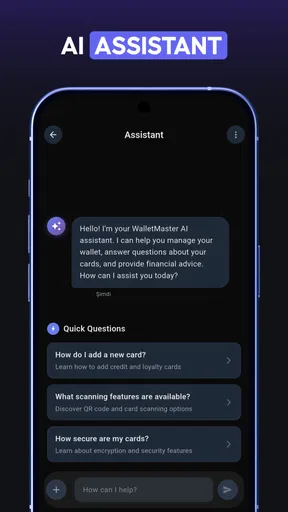
- Wallet Assistant
- Categories
- Tools
- Platform
- Android
Screenshots
 Analysis by AppCompare
I tend to notice a digital wallet most at the moment it fails to save me time: I’m at a checkout, someone is waiting, and the card I need is buried in a pocket or another app. Wallet - Digital Card Wallet is aimed at that everyday snag. It brings cards and their scannable codes together on a phone, which can be handy if your physical wallet has become a small archive of memberships and rewards.
This is a free Android tools app from Wallet Assistant. It has a 4.6 average from around 8,300 ratings, and it has passed one million installs. It is rated for everyone, though some in-app purchases are available, priced between $19.99 and $69.99 per item. The current version is 6.0.7, and it runs on Android 7.0 or later. Those details make it worth checking that your phone meets the minimum before you plan a card migration.
Where the first snags tend to appear
The main appeal is straightforward: having a loyalty or membership card ready without carrying its plastic version. The less obvious part is that “digital wallet” can mean different things. This app is described as a place to organize cards and barcodes; I would not assume that every shop accepts a phone display, or that this app replaces a bank’s payment wallet. For a payment card, use the payment service your bank and the shop support. For a loyalty barcode, the shop’s scanner still has to read the image on your screen.
That distinction can prevent a frustrating first visit. Before leaving a physical card at home, try its saved barcode at a self-service checkout or show it to staff when the line is quiet. Some scanners are more particular than others about screen brightness, glare, or how the code is positioned. Keep the physical card until you know your regular store can scan the digital copy reliably.
Setup checks that save time later
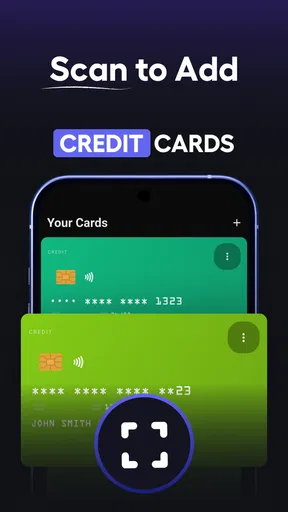
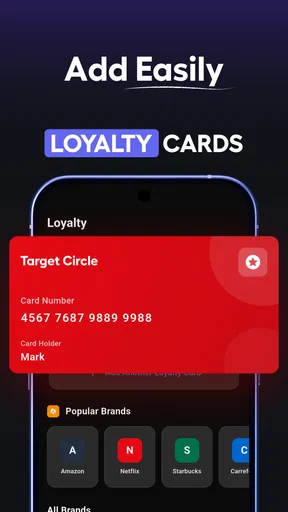
The app’s store summary points to credit cards, barcodes, and loyalty cards as the things it helps organize. The published experience describes adding card information by typing or taking a photo, then saving a barcode or QR code for presentation. I’d start with a card I use often rather than importing everything at once. That gives you a quick test of whether the details and code are readable before you spend time sorting a whole stack.
When adding a card, compare the saved details with the physical card before relying on it. A photo can make entry easier, but reflections, worn printing, or a cropped image can lead to a poor result. If the barcode is the important part, check that the full code is visible and not cut off at the edges. A little care during setup is more useful than discovering a mistake when you are already at the till.
Wallet Assistant is the developer behind the app, and its simple purpose is a useful point of focus: keep cards together rather than turn shopping into another complicated system. Still, convenience depends on a phone being available and usable. If your battery is low, the screen is damaged, or you cannot unlock the device quickly, the plastic card remains the more dependable backup. I would treat the app as a way to carry fewer cards, not as a reason to discard every physical one.
Worth Reading Before You Choose

Flipboard Shows What News Apps Must Do Beyond the Feed

Switching to Android Auto Means Rethinking Your Driving Routine

Google Calendar Makes a Crowded Week Easier to Manage

Ludo King Makes the Most of the Minutes Between Plans

Baby Panda World Brings Quick Play to Modern Phones, but Its Game Library Feels Busy

ESPN’s Live Game View Makes Following Close Games Easier
Putting a digital card wallet to work
I find a digital card wallet most useful when it changes a small routine: instead of deciding which cards to carry before leaving home, I can keep the frequently used ones together and check that each is ready before I head out. That practical test matters more than importing everything at once, and it sets up a closer look at the checkout habits that make the collection genuinely convenient.
A checkout routine that feels natural
A realistic use case is a grocery run where you need a store loyalty barcode, followed by a stop at a coffee shop with a separate rewards card. Instead of looking through a purse or scrolling through old photos, you open the relevant saved card and present its code. The benefit is modest but practical: fewer loose cards and less last-minute searching. It works best when the cards you use most are easy to identify and you know where to find them.
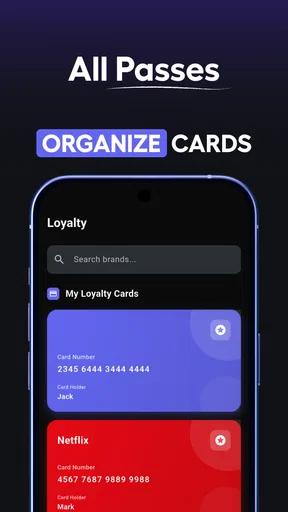
For a smoother routine, add the cards you reach for weekly first and give each a clear, recognizable organization label if the app’s categories suit your habits. Keep occasional-use cards for later. A tidy collection is faster to use than a complete digital copy of every card you have ever received. If two cards have similar designs, check the name or number before presenting one; visual familiarity alone is not always enough.
How it compares with familiar alternatives
The usual alternative is a physical card holder. It works without a charged phone and is accepted wherever the card itself is accepted, but it adds bulk and makes seldom-used cards easy to lose in the stack. A photo album is another workaround, though pictures can be mixed in with unrelated images and are less convenient to browse at a counter. A dedicated digital wallet can offer a cleaner place for cards, but it still depends on the shop accepting a screen and on the saved code being legible.
For bank payments, the comparison is different. A payment wallet is designed to make supported contactless transactions, while a stored barcode is generally for identification or loyalty scanning. I would use the right tool for each job instead of assuming one app can replace them all. If your main aim is tap-to-pay, this card-organizing app may not be the option you need; if your problem is a bulging collection of reward cards, its narrower focus makes more sense.
Useful habits, with a few trade-offs
One helpful approach is to make a small “active” collection in your own mind: the cards for the places you visit now, rather than every membership you might use one day. This reduces browsing at checkout and makes it easier to spot a stale or incorrectly saved entry. Another is to test a code in ordinary lighting before depending on it. A code that looks clear on your phone can still be awkward for a scanner if the screen is dim or reflects overhead lights.
There is also a privacy trade-off whenever personal card details are gathered in one place. The original app description presents security protections, including encryption and optional password or biometric access; those are reassuring safeguards, but they do not remove the need to protect the phone itself. I would use a device lock, avoid showing a sensitive card screen to people nearby, and think carefully before storing information that I rarely need. A loyalty barcode is not the same as a payment credential, so treat each card according to what it exposes.
Users often wonder whether they can leave every card at home. I would not recommend that until you have tested the digital versions at the stores you actually visit. Others may ask whether the app is right for travel: it can help keep membership or loyalty cards together, but it is not a substitute for travel documents or a payment method that works where you are going. And if you are deciding whether to pay for anything inside the app, first see whether its free use covers the simple card-organizing job you want; the available purchases make the cost worth checking before committing.
When a problem may be outside the app
If a code refuses to scan, the cause may be the store’s scanner, the angle of the phone, glare, or a screen that is too dim—not necessarily a damaged card entry. Try increasing brightness, holding the phone steady, and adjusting the distance from the scanner. If the same card repeatedly fails while others scan, compare its saved image or details with the physical card and add it again if needed. Keep the physical version available while you troubleshoot.
If the app feels slow, first consider how many cards you have loaded and whether the phone itself is busy or short on resources. Closing other apps and reopening the wallet is a reasonable basic check. If a problem persists, use the store’s current app support route rather than deleting your saved collection in a hurry. Before reinstalling or clearing app data, make sure you understand whether your cards are backed up; losing a carefully entered collection is a worse inconvenience than carrying a few plastic cards for another day.
This is also where expectations matter. A store may require its own app, a cashier may need to enter a number manually, or a printed card may be the only accepted format at a particular location. Those are acceptance rules outside the wallet’s control. Ask staff or check the retailer’s instructions before relying on a phone-only setup, especially for a card that provides a discount you do not want to miss.
Who will appreciate it—and who may not
I think this app makes most sense for people who regularly carry several scannable loyalty or membership cards and want a more orderly place for them. It is particularly useful when you rotate between a few shops, gyms, or services and dislike searching through a physical wallet. It is less compelling for someone with only one or two cards, or for a person who already has a reliable system they use without friction.
It may also be the wrong fit if your priority is contactless payment, a full financial dashboard, or automatic integration with every retailer. The simple card-focused approach is helpful precisely because it does not need to solve those broader problems. Before switching, ask yourself what you want to stop carrying and whether those cards are accepted digitally where you use them. If the answer is mostly “reward barcodes at familiar stores,” the app has a clear role. If the answer is “all payments and all membership services in one place,” you may need a broader or separate solution.
First Impressions: A Sleek and Intuitive Design
When I first opened the app, I was immediately impressed by its sleek and user-friendly interface. The design is minimalist, which I appreciate because it doesn’t bombard you with unnecessary features. Everything you need is right at your fingertips. It’s like the app just gets it, you know? It’s built to make your life easier, not more complicated.
Setting up the app was a breeze. I simply downloaded it from the app store, and within minutes, I was adding my first card. The app supports a wide range of card types, from loyalty and membership cards to gift cards and even insurance cards. If you’re like me and have a collection of these, it’s a game changer.
Loading Cards: Simple and Efficient
Adding cards is as easy as pie. You can manually enter the card details or, if you’re feeling a bit lazy (no judgment here), just snap a photo of the card, and the app will do the rest. The OCR technology is pretty spot-on, capturing all the necessary details without a hitch. I found myself breezing through my stack of cards in no time.
Plus, there’s a nifty feature that allows you to add a barcode or QR code. So, when you’re at the store, you can just show your phone instead of digging through your wallet. Trust me, it saves a ton of time and, honestly, it feels a bit futuristic.
Security: Peace of Mind
Now, I know what you’re thinking. Is it safe to store all my sensitive card information on an app? I had the same concern. But rest assured, the app has got you covered. The app uses encryption to secure your data, which means it’s pretty darn difficult for anyone to access your information without your permission.
You can also set up a password or use biometric authentication to access the app. I opted for fingerprint recognition, mostly because it feels like something out of a spy movie. And let’s be real, who doesn’t want to feel like a secret agent every once in a while?
Personalization and Ease of Use
One of the things I love most about the app is how customizable it is. You can organize your cards into categories, making it super easy to find what you need. Whether it’s for groceries, travel, or entertainment, you can tailor the app to suit your lifestyle.
The app also lets you set up reminders for card expiration dates, so you’ll never miss out on using a card before it’s too late. I can’t tell you how many times that’s saved me from losing out on rewards or discounts. It’s like having a personal assistant in your pocket, constantly keeping you in the loop.
Room for Improvement
While my experience has been mostly positive, there are a couple of areas where the app could improve. For instance, I’d love to see an option for digital receipts. Having them stored alongside the cards would be super convenient.
Also, while the app is quite efficient, I noticed it can occasionally lag when loading a large number of cards. It’s not a deal-breaker, but it’s something to keep in mind if you have a massive collection.
Lastly, a more robust integration with other apps and services would be a welcome addition. Imagine linking your calendar with your loyalty cards to automatically remind you of upcoming promotions or deals. Now, that would be a dream!
Final Thoughts: A Handy Companion
All in all, the app is a fantastic tool for anyone looking to declutter their physical wallet and streamline their card-carrying experience. It’s easy to use, secure, and offers a level of convenience that paper cards simply can’t match.
Whether you’re a frequent shopper or someone who just loves to stay organized, this app is definitely worth checking out. Give it a try, and you might find yourself wondering how you ever managed without it. Happy organizing!
Pros
- Secure encryption for card data.
- User-friendly interface
- easy navigation.
- Supports multiple card types.
- Quick setup and card addition.
- Offline access for stored cards.
Cons
- Limited customer support options.
- No integration with all banks.
- Ads in the free version.
- Occasional app crashes reported.
- No dark mode available.
FAQs for Wallet - Digital Card Wallet
How secure is Wallet - Digital Card Wallet?
Wallet - Digital Card Wallet employs advanced encryption techniques to ensure your data is safe. The app uses biometric authentication, such as fingerprint and facial recognition, to prevent unauthorized access. Regular security updates and compliance with industry standards further enhance its security, providing users peace of mind about their stored information.
Can I use Wallet - Digital Card Wallet offline?
Yes, Wallet - Digital Card Wallet allows offline access to your stored cards and information. This means you can view your digital cards without an internet connection. However, for features like syncing data across devices or updating card details, an internet connection will be required.
Which types of cards can I store in Wallet - Digital Card Wallet?
Wallet - Digital Card Wallet supports a wide range of cards, including credit and debit cards, loyalty cards, membership cards, and more. The app allows you to scan and store both barcodes and QR codes, making it versatile for any card type you need to manage digitally.
Is Wallet - Digital Card Wallet compatible with all devices?
Wallet - Digital Card Wallet is compatible with most Android and iOS devices. It requires a minimum operating system version, which is typically specified on the app's download page. Users should ensure their device meets these requirements for optimal performance and functionality.
How does Wallet - Digital Card Wallet handle data privacy?
Wallet - Digital Card Wallet prioritizes user privacy by not storing any personal data on external servers. All information is encrypted and stored locally on your device. The app also offers options to customize privacy settings, allowing users to control what data is shared and how it is used.


